Kling 3.0 Video Generator

Create action and scene concepts with Kling 3.0 in Image4. Write a focused motion prompt, add supported images, and choose the output settings for your provider.

Start Frame
End Frame

Image 1 is the first frame; image 2 is the optional last frame. The input image may determine the canvas.

5s
3s15s

Credits will be automatically refunded if generation fails.

Your video preview

Start with one clear action and one camera movement. Your finished video appears here.

Session history
Sign in to see your session history.

Shot guide

Kling 3.0 Video Generator: inputs and creative direction

The active provider determines which input modes and settings are available for the shot.

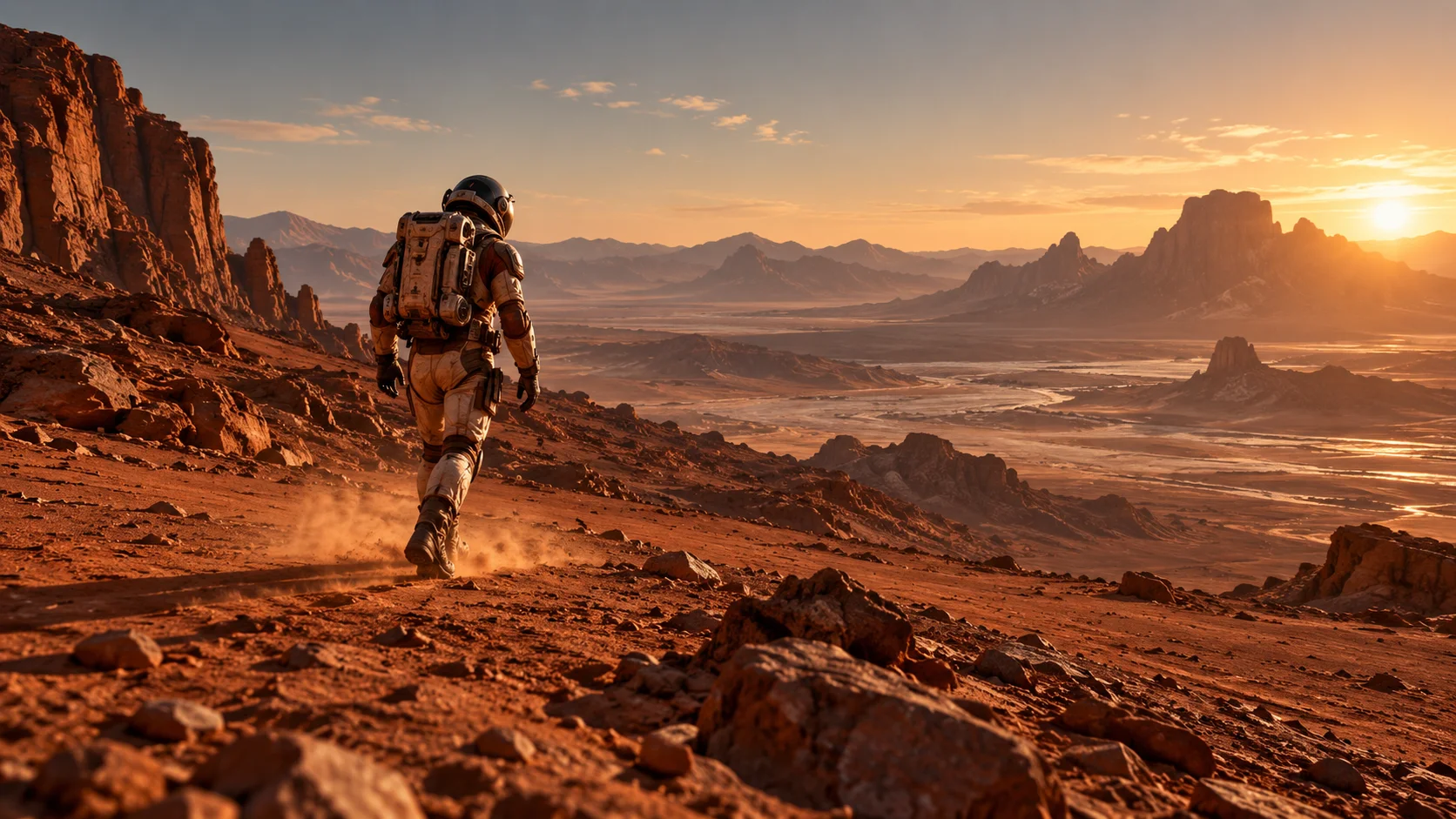
Astronaut walking across a desert landscape beneath a wide sky
Illustrative concept visual created for this page; it is not a generated video or verified output from the named model.

Model input

Select an available input mode

The KIE workflow exposes text-to-video and image-to-video. Review the mode list for the selected provider before adding an input image.

  • Short prompt-led or image-guided scenes with a clearly described camera path.
  • The prompt specifies a single arc and a preservation check without asking the model to reproduce a real person or branded suit.

Shot brief

Desert explorer shot

The prompt specifies a single arc and a preservation check without asking the model to reproduce a real person or branded suit.

  • Example brief: “A suited explorer walks across a broad desert basin, fine dust lifts around each step, camera slowly arcs from a side view toward the horizon, late-day light and long shadows, keep the suit shape stable, no insignia or text.”
  • Use one principal action and a camera direction to keep the shot easy to review.

Output settings

Check the active model controls

KIE Kling 3.0 supports 3–15 seconds, 16:9, 9:16, or 1:1 framing, std/pro/4K mode, and optional sound. Other provider fields can differ.

  • KIE Kling 3.0 supports 3–15 seconds, 16:9, 9:16, or 1:1 framing, std/pro/4K mode, and optional sound. Other provider fields can differ. KIE is the default provider. Available modes and controls can vary by provider, model, and mode, so use the values shown in the generator before submitting.
  • Review the active options and credit estimate before submitting.

Quality check

Review the complete clip

Generated motion can change framing or fine details. Review the entire clip against the shot brief before using it.

  • Check motion, framing, subject details, readable text, and audio when enabled.
  • Compare the result with the desert explorer shot brief before using it in finished work.

From input to reviewed clip

How to use Kling 3.0 Video Generator in Image4

Use the desert explorer shot as a planning reference, then confirm that the selected provider supports your input mode.

  1. 01

    Select an available input mode

    The KIE workflow exposes text-to-video and image-to-video. Review the mode list for the selected provider before adding an input image.

  2. 02

    Write for visible motion

    Name the subject, one principal action, the setting, and any camera move. For image-guided video, say which details should stay recognizable; guidance does not guarantee exact preservation.

  3. 03

    Check provider-specific settings

    KIE Kling 3.0 supports 3–15 seconds, 16:9, 9:16, or 1:1 framing, std/pro/4K mode, and optional sound. Other provider fields can differ. KIE is the default provider. Available modes and controls can vary by provider, model, and mode, so use the values shown in the generator before submitting.

  4. 04

    Review and refine the clip

    Generated motion can change framing or fine details. Review the entire clip against the shot brief before using it.

Common questions

Kling 3.0 Video Generator FAQ

Explore Kling 3.0 Video Generator in Image4

The prompt specifies a single arc and a preservation check without asking the model to reproduce a real person or branded suit. Choose a supported input mode, review the current controls and credit estimate, then create a draft in the video workspace.