Image to Image AI

Restyle photos, sketches, and product images with image to image AI. Upload a reference, describe what to change, and generate a new variation in Image4.

Prompt Templates
Explore more prompts
Cobalt-blue glass perfume bottle on a pale stone pedestal in a sunlit studio
Prompt Templates

Creative guidance

Image to Image AI: examples and practical tips

Restyle an uploaded reference

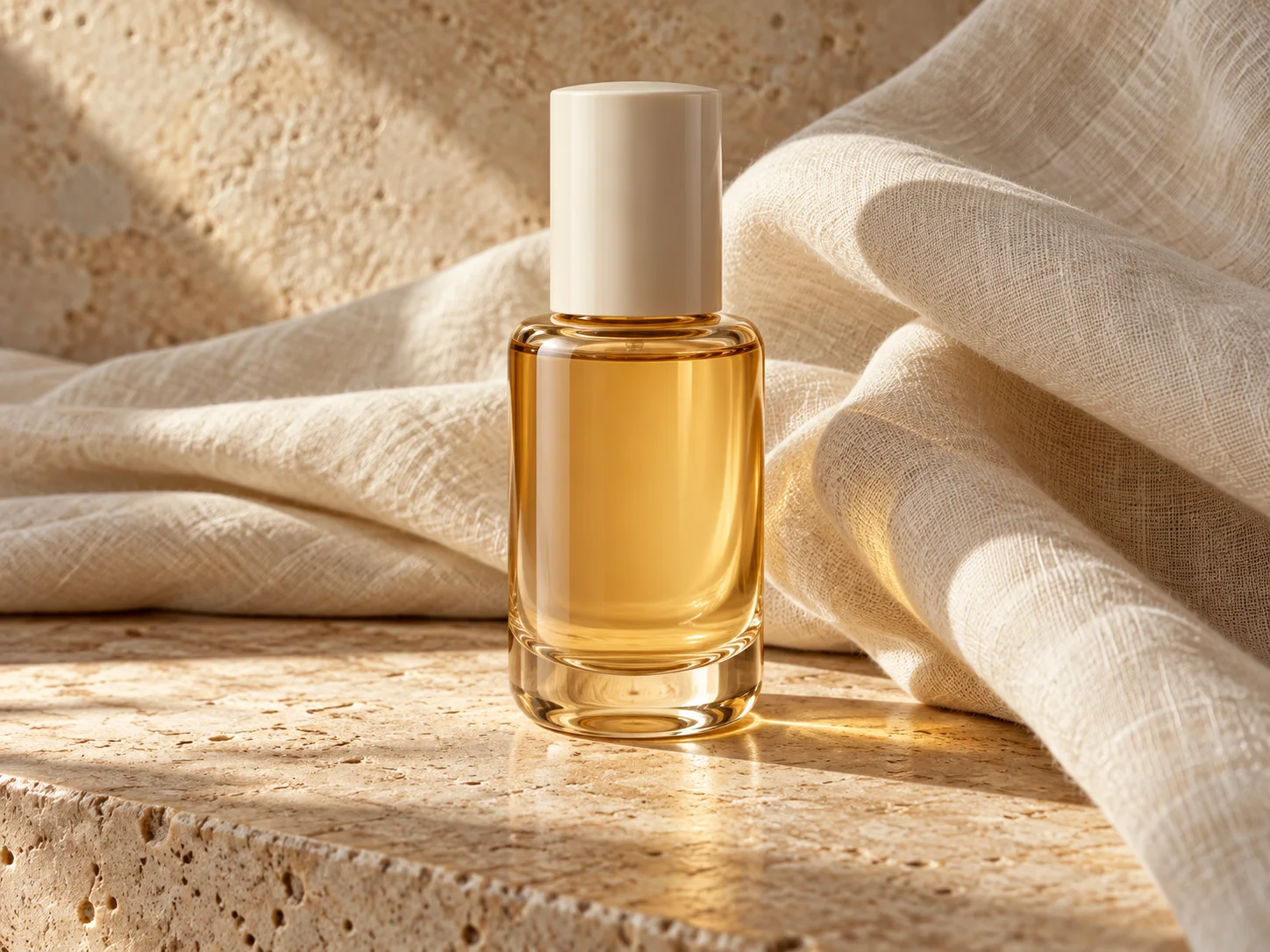
Amber glass serum bottle on cream linen and pale stone in a reference guided product scene
Illustrative concept visual created for this page; it is not a guaranteed model output.

Brief

Product setting

Image to image AI uses a source picture to guide a new variation. Upload a product photo to explore a different setting, or a sketch to explore color and texture. Describe the features to retain separately from the changes you want. The result is a generated interpretation, so compare shapes and details with the source.

  • Separating preserved details from the new setting helps clarify the transformation.
  • Example prompt: “Use the uploaded perfume bottle as the reference. Keep its silhouette and cap recognizable. Create an editorial scene with folded ivory fabric, controlled side lighting and subtle glass reflections; avoid invented brand text.”

Required input

Start from a source image

Upload a supported image, then state which details should stay recognizable and what should change. The sketch guides arrangement while the prompt describes the desired rendering.

  • Example prompt: “Use the uploaded sketch as the composition guide. Render the scene as a warm gouache illustration, keep the main shapes and viewpoint, add soft evening light and paper texture.”
  • Use an image you have permission to upload; generated changes are not pixel-preserving.

Settings

Choose a practical output format

Select a model and choose the available output settings for the intended placement. Use a portrait crop for a cover or a wide crop for a banner.

  • This is a new generated variation, not a pixel-preserving filter or a guaranteed copy of the source.
  • Review the available settings and credit estimate before submitting.

Review

Review the generated image

Compare the new image with your source for shape, identity, labels, and small details before refining it. Compare the result with your brief or source before using it.

  • Reference guidance is probabilistic; face identity, logos, labels, and exact geometry can change.
  • Change one part of the brief at a time so each new draft is easier to evaluate.

From brief to reviewed image

How to use Image to Image AI

This workflow requires an image. Upload a clear photo, sketch, or product image to use as the visual reference. Check the accepted file and model limits before submitting.

  1. 01

    Upload your source image

    Upload a clear photo, sketch, or product image to use as the visual reference.

  2. 02

    Set the visual direction

    Name the subject features to retain, then describe the background, material, or style to change. Use the example prompt above as a starting point, not a required template.

  3. 03

    Choose output and generate

    Select a compatible image model and available output settings, then review the generation estimate. Check the current model, output choices, and credit estimate before submitting.

  4. 04

    Review and refine

    Compare the new image with your source for shape, identity, labels, and small details before refining it.

Common questions

Image to Image AI FAQ

Try Image to Image AI in Image4

Separating preserved details from the new setting helps clarify the transformation. Start with a focused brief and review the generated image against your intended use.