Real Estate Video Generator

Create real estate video concepts from property photos with Image4. Guide a restrained camera move and review building details before editing a listing video.

Start Frame
End Frame

Image 1 is the first frame; image 2 is the optional last frame. The input image may determine the canvas.

5s
3s15s

Credits will be automatically refunded if generation fails.

Your video preview

Start with one clear action and one camera movement. Your finished video appears here.

Session history
Sign in to see your session history.

Shot guide

Real Estate Video Generator: inputs and creative direction

The active provider determines which input modes and settings are available for the shot.

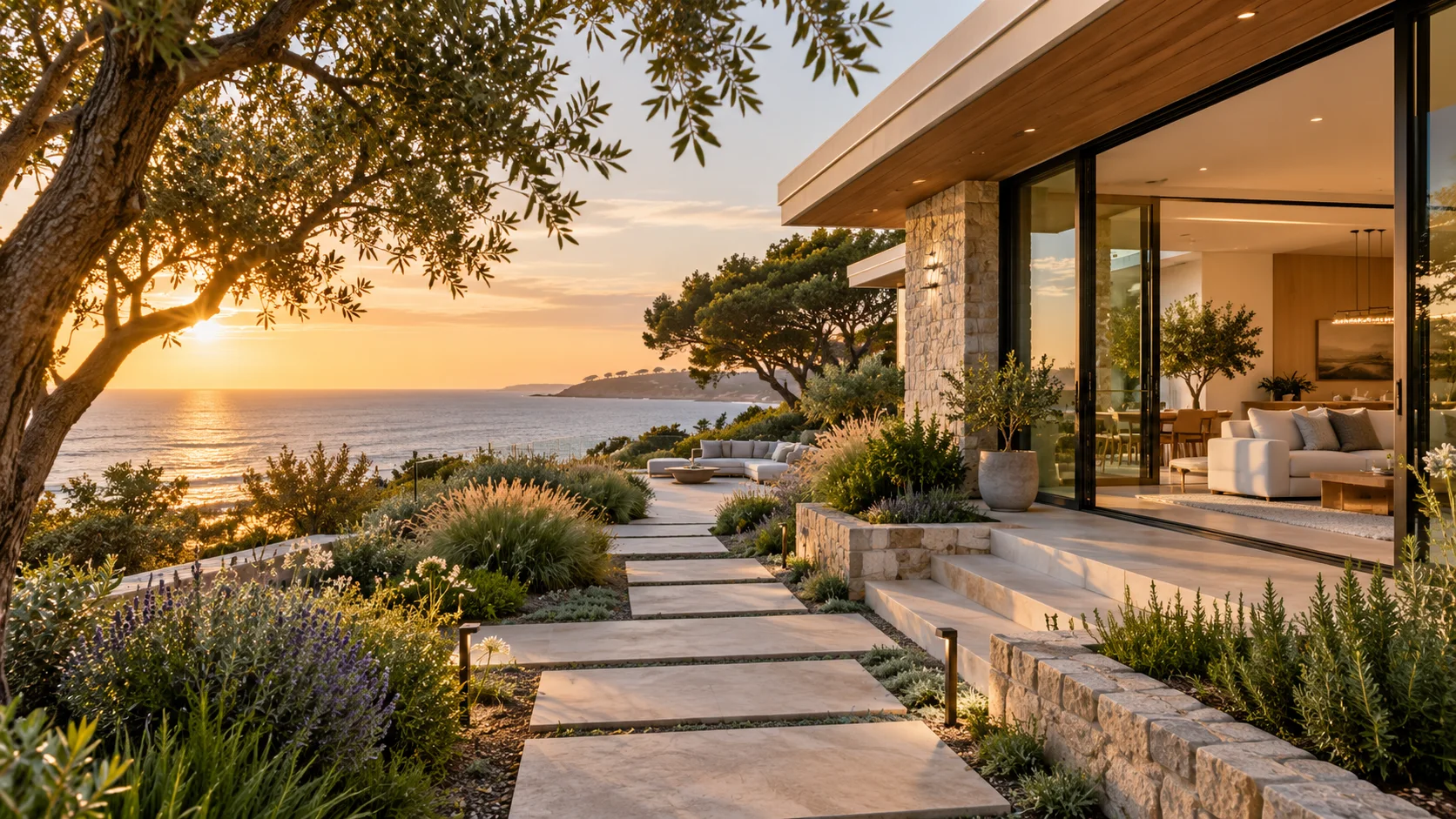
Modern coastal home exterior concept surrounded by native planting
Original illustrative concept visual generated for the Real Estate Video Generator page; it is not a generated video or verified model output.

Starting point

Start with an authorized listing image

Use photography you own or have permission to use, with a clear view of the area the camera should explore.

  • Early listing-storyboard concepts and gentle motion studies for owned property photography.
  • The prompt limits movement to the camera and garden while explicitly flagging property features to verify.

Shot brief

Exterior listing motion study

The prompt limits movement to the camera and garden while explicitly flagging property features to verify.

  • Example brief: “Use the uploaded exterior photo as the starting frame. Add a slow forward camera glide along the garden path toward the front door, leaves move slightly in the breeze, preserve the building outline and window placement, clear afternoon light, no new structures.”
  • Use one principal action and a camera direction to keep the shot easy to review.

Output settings

Check the active model controls

Use image-to-video when the selected provider supports property-photo input. The active model determines duration, ratio, resolution, and image limits.

  • Compare architecture, room dimensions, finishes, fixtures, landscaping, and views with the real listing. Label conceptual material where appropriate.
  • Review the active options and credit estimate before submitting.

Quality check

Review the complete clip

Generated motion can change framing or fine details. Review the entire clip against the shot brief before using it.

  • Check motion, framing, subject details, readable text, and audio when enabled.
  • Compare the result with the exterior listing motion study brief before using it in finished work.

From input to reviewed clip

How to use Real Estate Video Generator in Image4

Use the exterior listing motion study as a planning reference, then confirm that the selected provider supports your input mode.

  1. 01

    Start with an authorized listing image

    Use photography you own or have permission to use, with a clear view of the area the camera should explore.

  2. 02

    Choose a restrained camera path

    Ask for a slow pan or push through a real room or exterior. Avoid movement that would imply a false floor plan or viewpoint.

  3. 03

    Verify every property detail

    Compare architecture, room dimensions, finishes, fixtures, landscaping, and views with the real listing. Label conceptual material where appropriate.

  4. 04

    Review and refine the clip

    Generated motion can change framing or fine details. Review the entire clip against the shot brief before using it.

Common questions

Real Estate Video Generator FAQ

Explore Real Estate Video Generator in Image4

The prompt limits movement to the camera and garden while explicitly flagging property features to verify. Choose a supported input mode, review the current controls and credit estimate, then create a draft in the video workspace.