Nano Banana 2 AI Image Generator

Create product scenes and campaign images with Nano Banana 2 in Image4. Use text or references, choose supported framing and resolution, and refine your draft.

Prompt Templates
Explore more prompts
Cobalt-blue glass perfume bottle on a pale stone pedestal in a sunlit studio
Prompt Templates

Model guide

Nano Banana 2: generation and editing capabilities

Review supported inputs, output settings, and practical limits before using a draft.

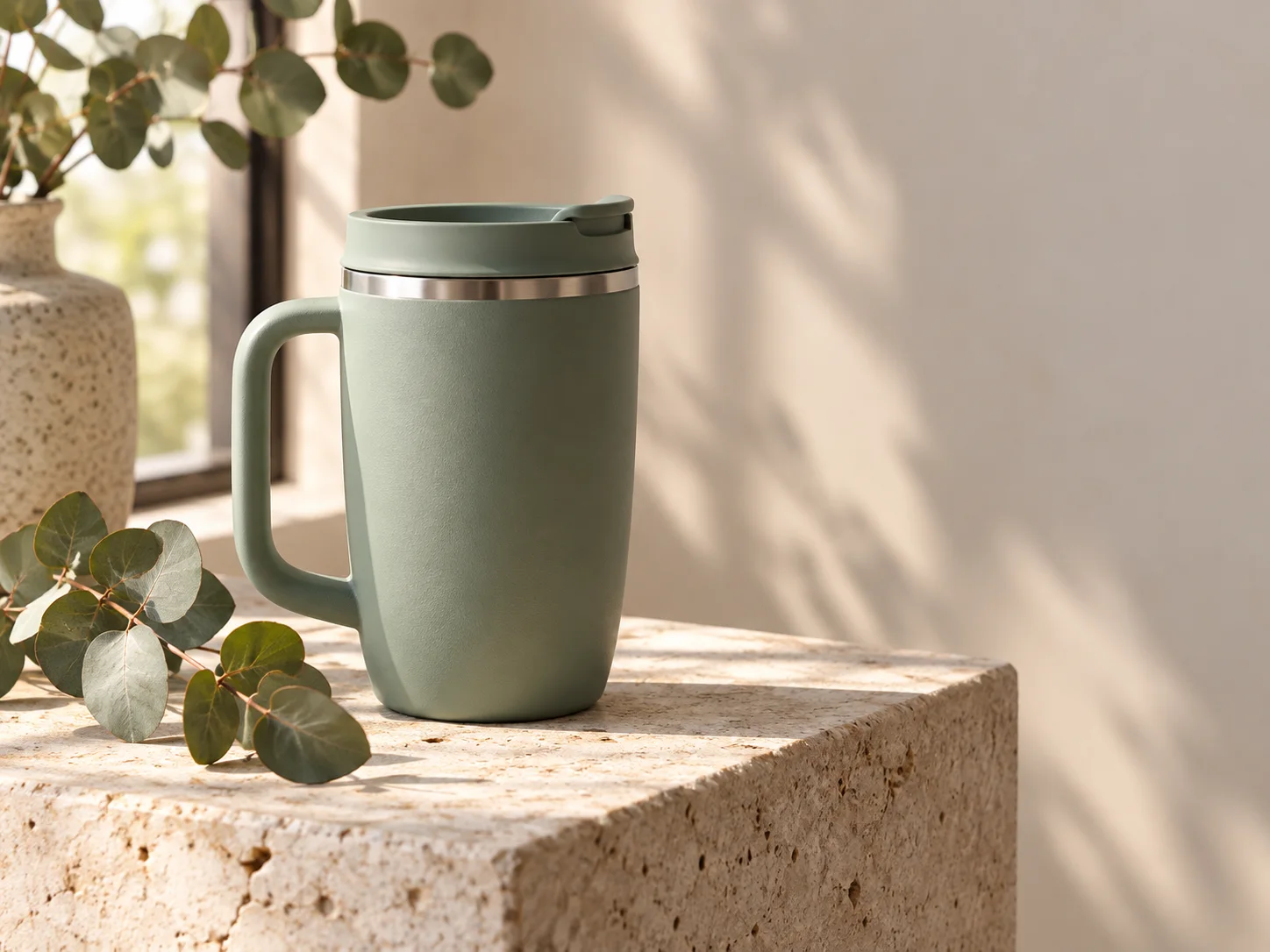
Sage ceramic tumbler product concept on a studio set
Original illustrative concept visual generated for this Nano Banana 2 page; it is not a verified model output.

Prompting

Nano Banana 2 image creation

Describe the subject, setting, composition, and lighting to create a new image with Nano Banana 2.

  • Example direction: Name the product material, camera angle, light source, background, and any empty space needed for a later layout.
  • Example prompt: “Create a studio product photograph of a matte ceramic travel mug on a pale stone plinth, soft morning window light, sage-green backdrop, three-quarter view, and clean space on the right for later headline placement. No lettering.”

Reference editing

Guide edits with image references

Add up to 14 supported reference images in the Nano Banana 2 edit workflow and describe which product or scene details should remain recognizable. The model may reinterpret details, so review the result before using it in a finished asset.

  • Example edit: State which details to preserve and which parts to change, then inspect the output against the source image.
  • Image4 routes requests through the selected API provider, with KIE as the default. Model names and trademarks belong to their respective owners; this page describes the Image4 workflow and is not an official provider product page.

Output settings

Choose supported output settings

The KIE Nano Banana 2 integration exposes 1K, 2K, and 4K resolution, aspect ratio, and reference images. It does not expose a separate quality selector.

  • The KIE Nano Banana 2 integration exposes 1K, 2K, and 4K resolution, aspect ratio, and reference images. It does not expose a separate quality selector.
  • KIE offers 1K, 2K, and 4K output with supported aspect ratios.

Iteration

Refine the visual direction

Change one part of the prompt at a time to compare composition, color, lighting, or material choices across drafts.

  • Generated text, identity, materials, and fine details may differ from the prompt or source image. Review each output before publishing or using it in production.
  • Refine one visual decision at a time to make changes easier to evaluate.

From brief to reviewed image

How to use Nano Banana 2

Use a focused prompt for product scenes, social campaign drafts, and edits guided by reference images. and confirm the supported inputs before generation.

  1. 01

    Choose the model

    Open the image workspace with this model selected. It is suited to product scenes, social campaign drafts, and edits guided by reference images.

  2. 02

    Write a specific brief

    Name the product material, camera angle, light source, background, and any empty space needed for a later layout. Include the subject, composition, and visual details that matter to this image.

  3. 03

    Set output options

    The KIE Nano Banana 2 integration exposes 1K, 2K, and 4K resolution, aspect ratio, and reference images. It does not expose a separate quality selector. Review the available choices and credit estimate before submitting.

  4. 04

    Review and refine

    Generated text, identity, materials, and fine details may differ from the prompt or source image. Review each output before publishing or using it in production. Compare the draft with your goal, then refine one detail at a time.

Google AI image model

Nano Banana 2 FAQ

Create images with Nano Banana 2

Start with nano banana 2 scene example, review the supported settings, and compare the generated image with your brief before using it.