Clone Video Ads

Explore clone video ads workflows in Image4. Use authorized image references and a shot brief to create new ad variations, then review product and brand details.

0/0
Drop images here, or click + to upload

Describe how to use each reference image. References influence the scene rather than fixing its first frame.

5s
3s15s

Credits will be automatically refunded if generation fails.

Your video preview

Start with one clear action and one camera movement. Your finished video appears here.

Session history
Sign in to see your session history.

Shot guide

Clone Video Ads: inputs and creative direction

The active provider determines which input modes and settings are available for the shot.

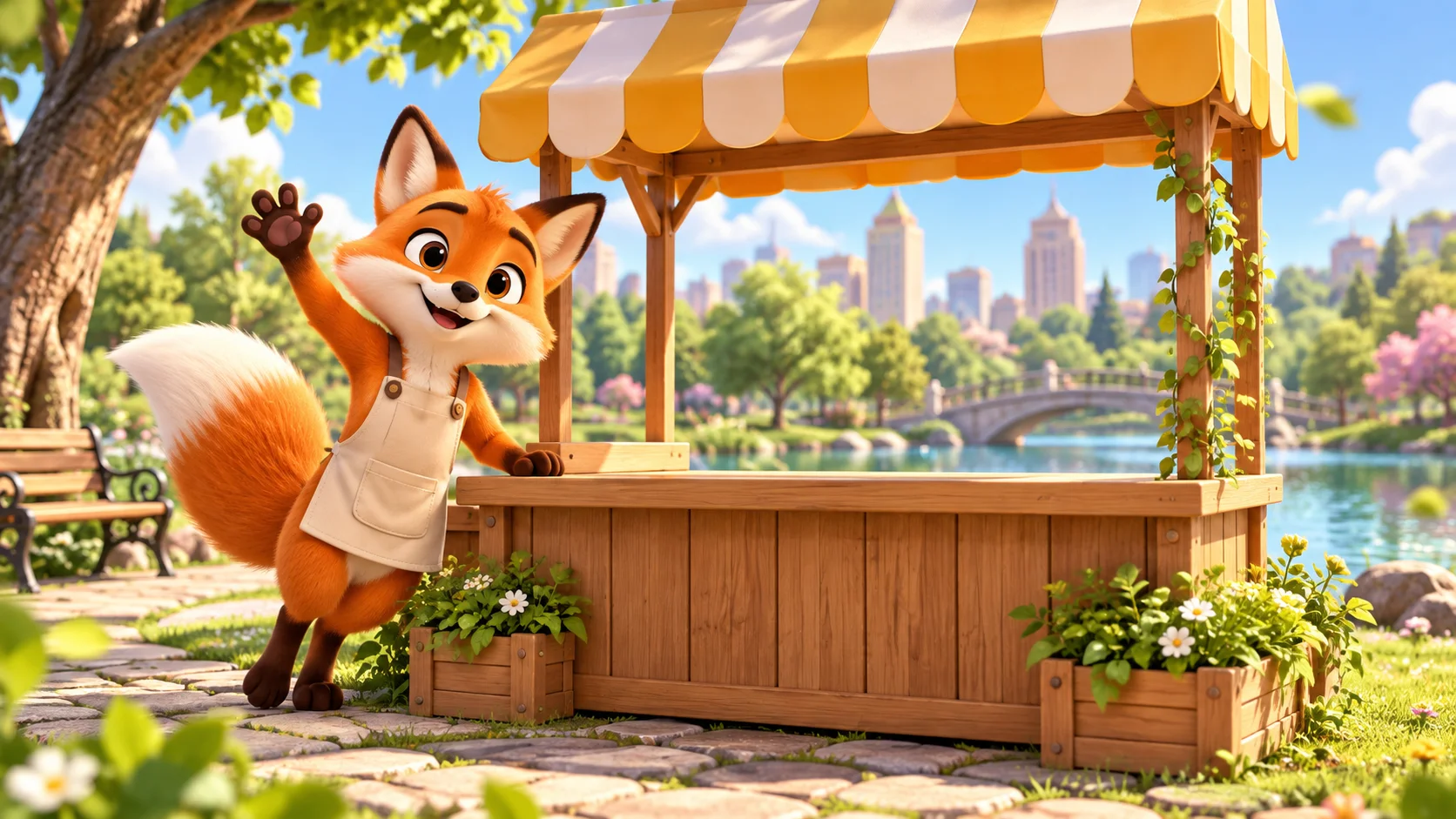
Fictional orange fox mascot concept in a bright original campaign scene
Original illustrative concept visual generated for the Clone Video Ads page; it is not a generated video or verified model output.

Starting point

Confirm reference rights

Use an original or licensed mascot image. An image reference can guide visual traits but does not lock every frame to the source.

  • Exploring new campaign scenes for an owned fictional mascot or licensed character.
  • The use of an owned fictional mascot keeps the brief focused on continuity without suggesting impersonation or duplication of a finished video.

Shot brief

Original mascot variation

The use of an owned fictional mascot keeps the brief focused on continuity without suggesting impersonation or duplication of a finished video.

  • Example brief: “Use the uploaded original fox mascot illustration as a visual reference. Keep its orange fur, scarf, and friendly proportions; show it waving beside a new blank snack stand in a sunny park, slow lateral camera move, no copied campaign assets or text.”
  • Use one principal action and a camera direction to keep the shot easy to review.

Output settings

Check the active model controls

Reference-to-video is available only with providers and modes that accept image references. Image4 applies a conservative image count where documentation has no published maximum.

  • Check colors, silhouette, costume, props, and campaign continuity. Rework the prompt or use approved source artwork in post-production where exact matching matters.
  • Review the active options and credit estimate before submitting.

Quality check

Review the complete clip

Generated motion can change framing or fine details. Review the entire clip against the shot brief before using it.

  • Check motion, framing, subject details, readable text, and audio when enabled.
  • Compare the result with the original mascot variation brief before using it in finished work.

From input to reviewed clip

How to use Clone Video Ads in Image4

Use the original mascot variation as a planning reference, then confirm that the selected provider supports your input mode.

  1. 01

    Confirm reference rights

    Use an original or licensed mascot image. An image reference can guide visual traits but does not lock every frame to the source.

  2. 02

    Keep a short identity checklist

    List a few distinctive traits, then describe a new action, setting, and camera move for this variation.

  3. 03

    Compare variations for drift

    Check colors, silhouette, costume, props, and campaign continuity. Rework the prompt or use approved source artwork in post-production where exact matching matters.

  4. 04

    Review and refine the clip

    Generated motion can change framing or fine details. Review the entire clip against the shot brief before using it.

Common questions

Clone Video Ads FAQ

Explore Clone Video Ads in Image4

The use of an owned fictional mascot keeps the brief focused on continuity without suggesting impersonation or duplication of a finished video. Choose a supported input mode, review the current controls and credit estimate, then create a draft in the video workspace.