Pixel Art Generator

Explore retro scenes and pixel-inspired illustrations with the Image4 pixel art generator. Choose a subject, limited palette, and simple composition.

Prompt Templates
Explore more prompts
Cobalt-blue glass perfume bottle on a pale stone pedestal in a sunlit studio
Prompt Templates

Creative guidance

Pixel Art Generator: examples and practical tips

Explore compact pixel-inspired scenes

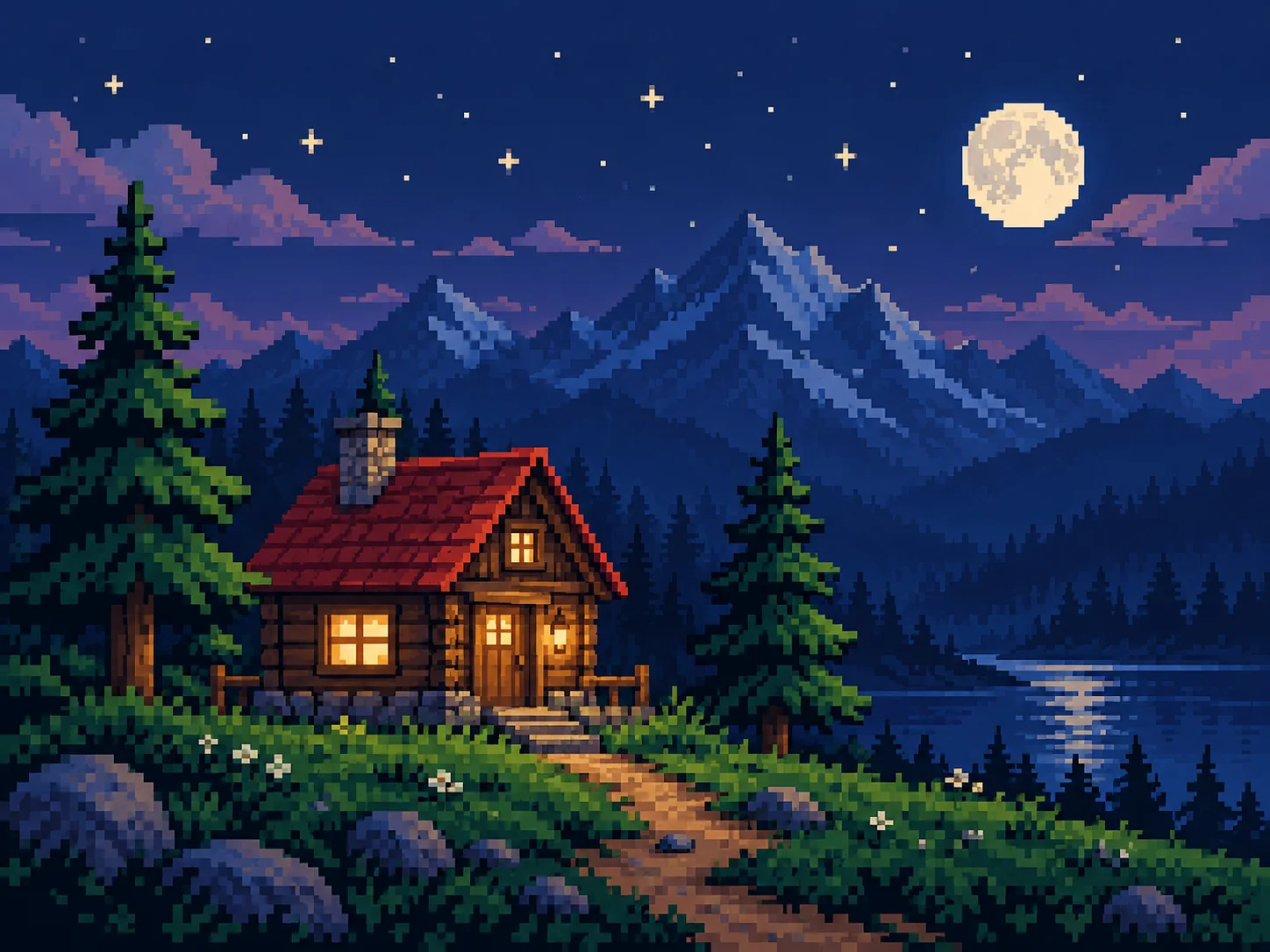
Pixel-inspired night scene with a small red-roofed house, blocky pine trees, and a limited indigo and amber palette
Illustrative pixel-inspired concept, not a sprite sheet or guaranteed pixel-grid output.

Brief

Cozy cabin at night

Pixel art reads clearly when the subject has a simple silhouette and a compact palette. State the viewing angle, background, and a few important shapes. Image4 generates a raster image guided by the prompt; it does not provide a fixed pixel grid, sprite sheet, or animation timeline.

  • A few large shapes and three related colors keep the scene legible at a glance.
  • Example prompt: “Pixel-art-inspired scene of a tiny red-roofed cabin beside two pine trees at night, compact indigo, forest green, and amber palette, clear blocky silhouettes, front-facing view, no lettering.”

Optional input

Use a reference when it adds direction

A reference is optional for this workflow. Add one when it helps guide the subject, composition, or treatment. A straightforward view and limited objects help the subject work as a compact visual.

  • Example prompt: “Retro pixel-inspired market stall with a striped awning, three fruit shapes, simple side view, warm cream background, limited red, green, and brown palette, centered icon composition.”
  • A written brief is enough to create a new scene from scratch.

Settings

Choose a practical output format

Select a model and choose the available output settings for the intended placement. Use a portrait crop for a cover or a wide crop for a banner.

  • Pixel-inspired textures can include irregular pixels or smooth details; inspect the image before using it in a game asset pipeline.
  • Review the available settings and credit estimate before submitting.

Review

Review the generated image

Inspect edges and repeated patterns; the result is a raster concept, not a production sprite sheet. Compare the result with your brief or source before using it.

  • The shared workspace does not expose exact pixel dimensions, a palette lock, sprite slicing, or animation controls.
  • Change one part of the brief at a time so each new draft is easier to evaluate.

From brief to reviewed image

How to use Pixel Art Generator

Choose a simple subject that can be recognized from its silhouette. Then shape the result with the subject, style, composition, and details relevant to this workflow.

  1. 01

    Write a visual brief

    Choose a simple subject that can be recognized from its silhouette.

  2. 02

    Set the visual direction

    Limit the brief to a small palette and a clear camera angle. Use the example prompt above as a starting point, not a required template.

  3. 03

    Choose output and generate

    Separate foreground, subject, and background shapes in the description. Check the current model, output choices, and credit estimate before submitting.

  4. 04

    Review and refine

    Inspect edges and repeated patterns; the result is a raster concept, not a production sprite sheet.

Common questions

Pixel Art Generator FAQ

Try Pixel Art Generator in Image4

A few large shapes and three related colors keep the scene legible at a glance. Start with a focused brief and review the generated image against your intended use.