AI Tattoo Generator

Explore custom tattoo concepts with the Image4 AI tattoo generator. Describe a subject, placement, and line style, then review the draft with a tattoo artist.

Prompt Templates
Explore more prompts
Cobalt-blue glass perfume bottle on a pale stone pedestal in a sunlit studio
Prompt Templates

Creative guidance

AI Tattoo Generator: examples and practical tips

Explore tattoo design concepts before consulting an artist

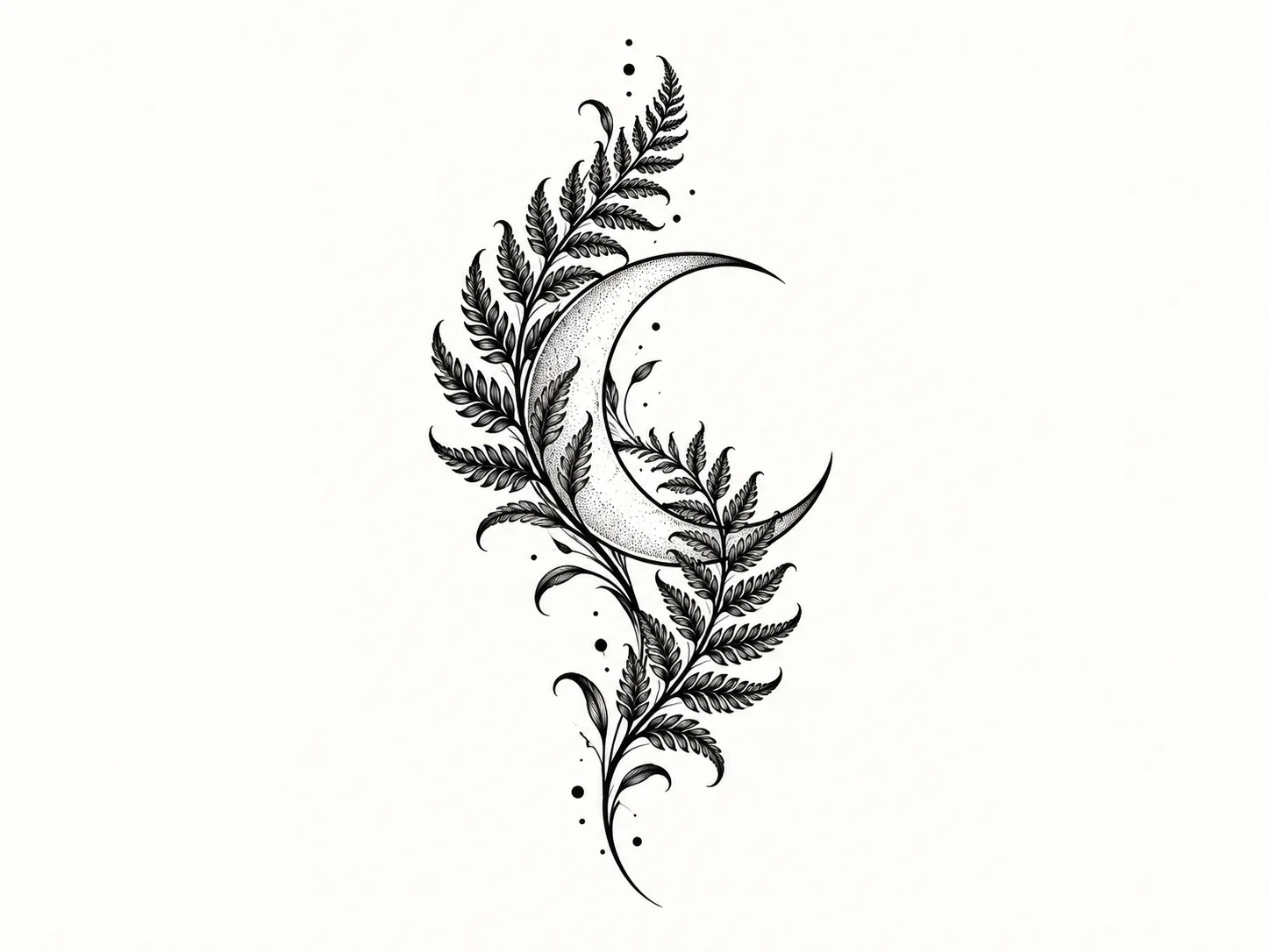
Blackwork botanical tattoo flash concept with a crescent moon and flowing fern leaves on a plain light background
Illustrative tattoo flash concept; an artist should adapt any design before it is tattooed.

Brief

Botanical crescent

A useful tattoo brief names the subject, approximate placement, scale, and whether the design should use fine line, bold blackwork, or a limited color accent. A generated image is only a concept: a tattoo artist needs to adapt it for body shape, line aging, stencil clarity, and safe application.

  • Subject, placement direction, and line hierarchy give an artist a clearer starting point.
  • Example prompt: “Blackwork tattoo flash concept of a slim crescent moon wrapped in two flowing fern fronds, clean bold outer contours with a few fine interior lines, vertical forearm composition, plain light background, no lettering.”

Optional input

Use a reference when it adds direction

A reference is optional for this workflow. Add one when it helps guide the subject, composition, or treatment. A compact theme and limited color make the idea easier to discuss and adapt.

  • Example prompt: “Minimal tattoo concept of one curling ocean wave around a small north star, simple black linework with one muted blue accent, compact ankle placement, open negative space, flat paper sketch, no text.”
  • A written brief is enough to create a new scene from scratch.

Settings

Choose a practical output format

Select a model and choose the available output settings for the intended placement. Use a portrait crop for a cover or a wide crop for a banner.

  • Do not treat a generated image as a tattoo stencil or substitute for an artist’s professional review.
  • Review the available settings and credit estimate before submitting.

Review

Review the generated image

Ask a licensed tattoo professional to redraw and check stencil readability before application. Compare the result with your brief or source before using it.

  • Generated sketches do not account for an individual body, skin, healing, or how fine details age over time.
  • Change one part of the brief at a time so each new draft is easier to evaluate.

From brief to reviewed image

How to use AI Tattoo Generator

Select one central symbol and describe what it means to you. Then shape the result with the subject, style, composition, and details relevant to this workflow.

  1. 01

    Write a visual brief

    Select one central symbol and describe what it means to you.

  2. 02

    Set the visual direction

    State approximate placement and orientation; body shape affects how the final design sits. Use the example prompt above as a starting point, not a required template.

  3. 03

    Choose output and generate

    Choose line weight, shading, and whether to use color accents. Check the current model, output choices, and credit estimate before submitting.

  4. 04

    Review and refine

    Ask a licensed tattoo professional to redraw and check stencil readability before application.

Common questions

AI Tattoo Generator FAQ

Try AI Tattoo Generator in Image4

Subject, placement direction, and line hierarchy give an artist a clearer starting point. Start with a focused brief and review the generated image against your intended use.