AI Graffiti Generator

Explore mural and street art concepts with the Image4 AI graffiti generator. Describe a wall composition, shapes, colors, and textures to guide your artwork.

Prompt Templates
Explore more prompts
Cobalt-blue glass perfume bottle on a pale stone pedestal in a sunlit studio
Prompt Templates

Creative guidance

AI Graffiti Generator: examples and practical tips

Visualize mural and street-art directions

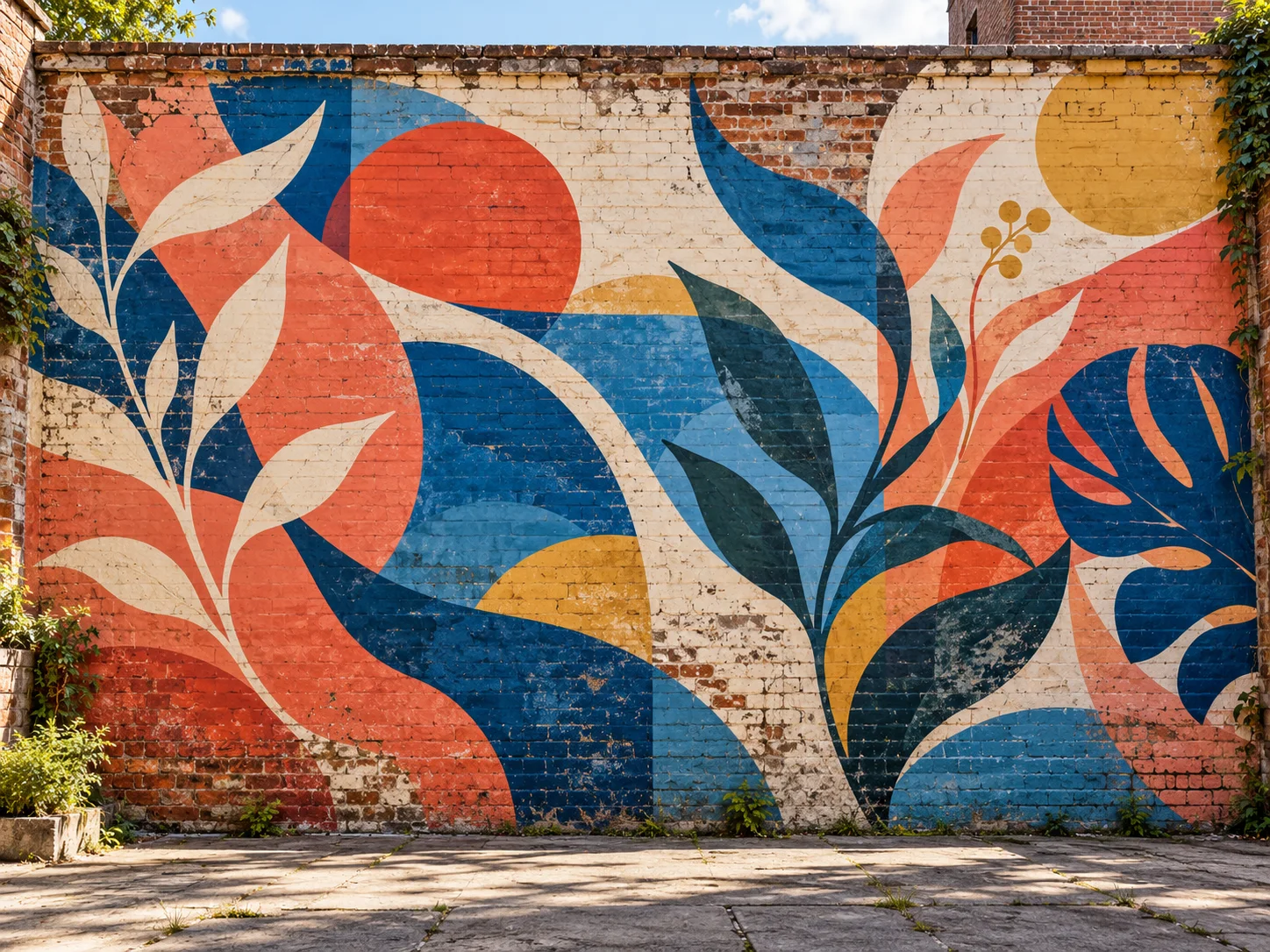
Colorful abstract mural concept with layered geometric shapes painted on a weathered brick wall, without readable lettering
Illustrative mural concept on a fictional wall, not an authorization to paint a real location.

Brief

Geometric community mural

A mural brief can describe the surface, scale, palette, shape rhythm, and surrounding architecture. If the image should avoid words, say so explicitly. Image4 creates a concept image; it does not create a legally authorized installation or guarantee accurate lettering, so plan the final work for a permitted surface.

  • Calling out a commissioned fictional wall and abstract shapes keeps the direction focused on a permitted mural concept.
  • Example prompt: “A commissioned community mural concept on a fictional weathered brick wall, flowing abstract geometric shapes in coral, cobalt, and cream, broad spray-paint textures, no lettering, eye-level wide photograph.”

Optional input

Use a reference when it adds direction

A reference is optional for this workflow. Add one when it helps guide the subject, composition, or treatment. Scale, wall surface, color, and a straight-on view help communicate how a mural fills a site.

  • Example prompt: “Large-scale botanical street-art mural concept with oversized leaves and seed pods across a pale concrete wall, layered forest green and warm orange forms, visible paint texture, no words or logos, straight-on view.”
  • A written brief is enough to create a new scene from scratch.

Settings

Choose a practical output format

Select a model and choose the available output settings for the intended placement. Use a portrait crop for a cover or a wide crop for a banner.

  • Lettering and repeated marks can be inconsistent; use a separate lettering and production process for final artwork.
  • Review the available settings and credit estimate before submitting.

Review

Review the generated image

Review the concept with the site owner and mural artist before planning an installation. Compare the result with your brief or source before using it.

  • Generated mural concepts do not grant permission to paint on a building, wall, or public space.
  • Change one part of the brief at a time so each new draft is easier to evaluate.

From brief to reviewed image

How to use AI Graffiti Generator

Choose an authorized fictional or real project surface and describe its material. Then shape the result with the subject, style, composition, and details relevant to this workflow.

  1. 01

    Write a visual brief

    Choose an authorized fictional or real project surface and describe its material.

  2. 02

    Set the visual direction

    Describe the main forms, scale, palette, and how they flow across the wall. Use the example prompt above as a starting point, not a required template.

  3. 03

    Choose output and generate

    Specify whether lettering or logos should be excluded from the draft. Check the current model, output choices, and credit estimate before submitting.

  4. 04

    Review and refine

    Review the concept with the site owner and mural artist before planning an installation.

Common questions

AI Graffiti Generator FAQ

Try AI Graffiti Generator in Image4

Calling out a commissioned fictional wall and abstract shapes keeps the direction focused on a permitted mural concept. Start with a focused brief and review the generated image against your intended use.